
Managing Your Tickets
View orders, add wallet passes, download receipts, and manage tickets from My Tickets.
- Open your ticket orders
- View an order and tickets
- Use a secure ticket link
- Add to Apple Wallet
- Add to Google Wallet
- Download a PDF ticket
- Download or email a receipt
- Update ticket holder name
- Transfer a ticket
- Screenshots and printed copies
- If something goes wrong
Open your ticket orders
- Log in.
- Click My Tickets in the top navigation, or open the account menu → My Tickets.
- Or go to My Account → Ticket Orders (some sites label this Orders).
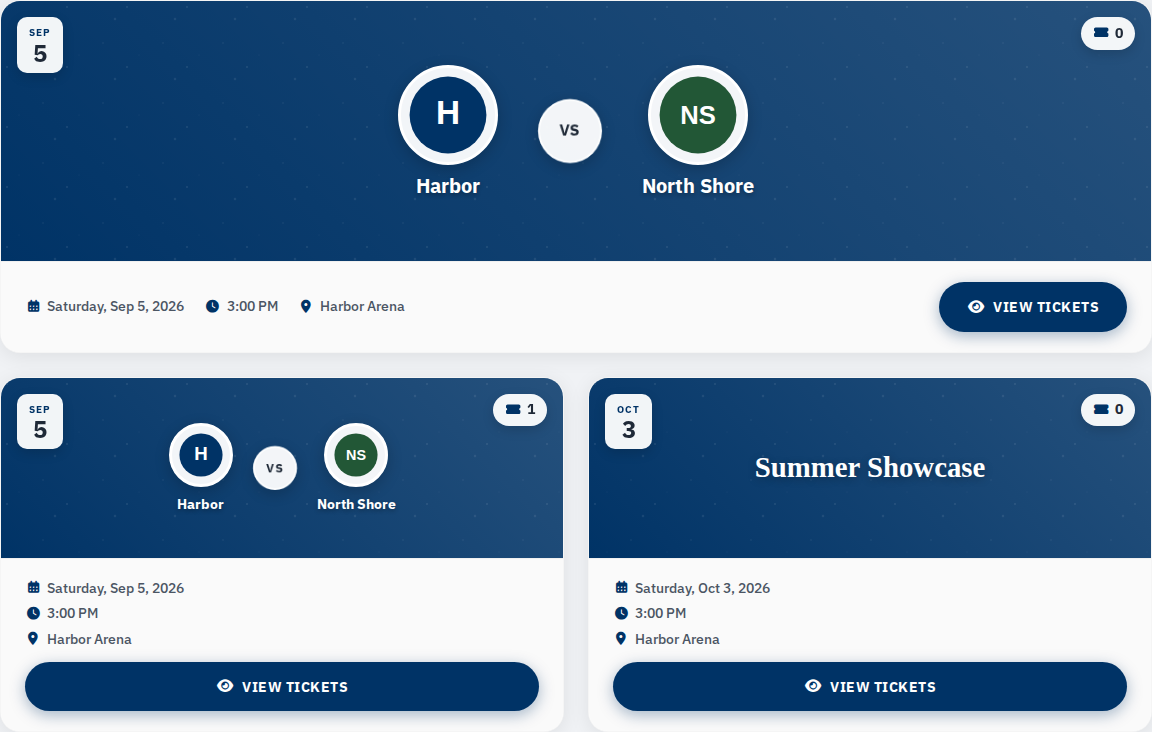
Your purchases are listed by order with event name, date, and status.
View an order and tickets
- Click an order to open it.
- Review each ticket — type, seat (or General Admission), holder name.
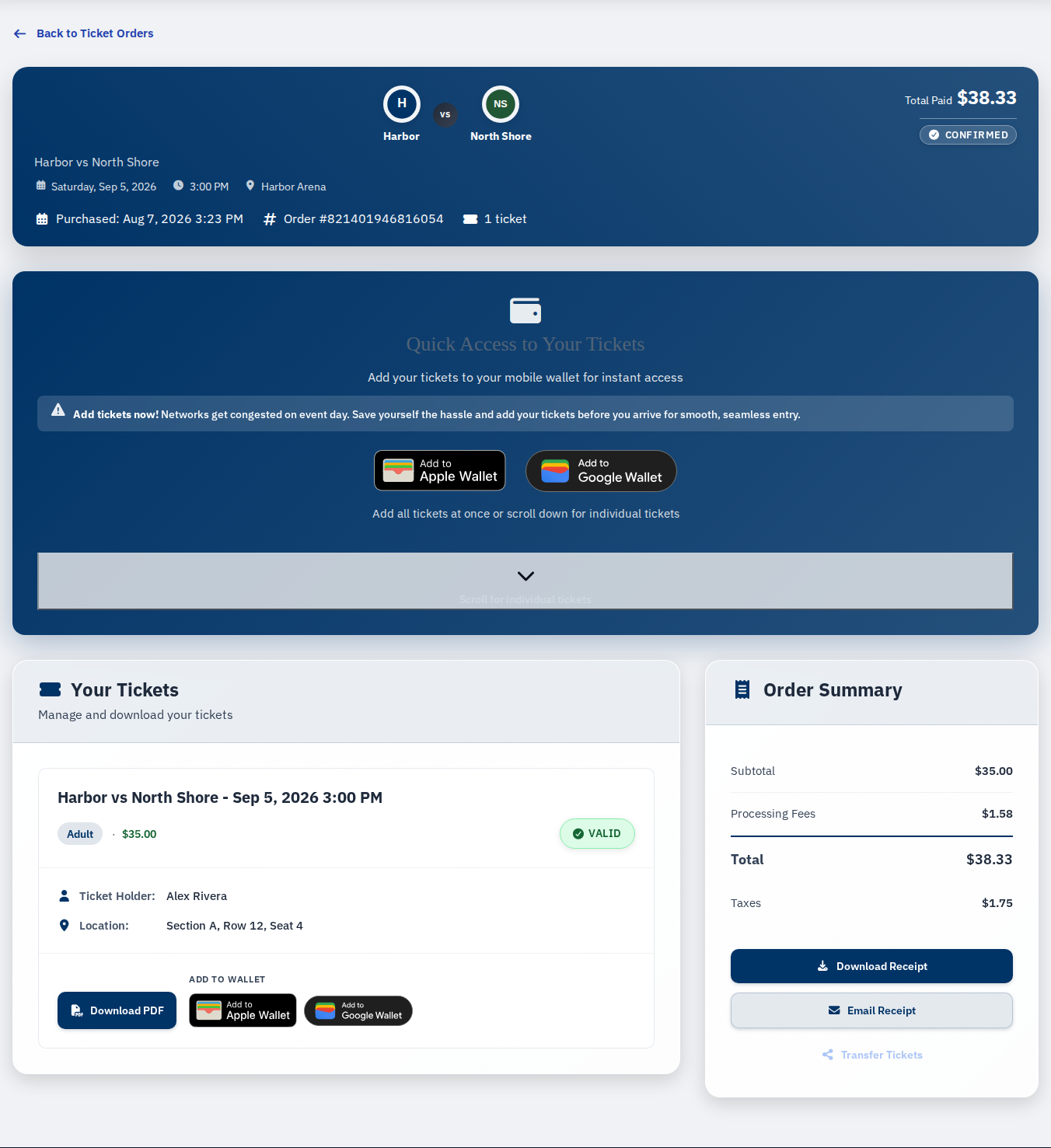
- Use per-ticket actions when they appear: Transfer, wallet buttons, Download PDF, or Cancel Transfer.
Some orders have bulk actions at the top — like adding all tickets to a wallet at once.
Use a secure ticket link
Support may send you a /secure-ticket/{token} link by text or email:
- Open the full link on the phone where you want the pass.
- Sign in if prompted, then return to the link.
- Tap Add all N tickets to Apple Wallet or Add all N tickets to Google Wallet when shown.
- Or use individual wallet buttons for one ticket at a time.
- Confirm the passes show up in your Wallet app.
If the page says the ticket was already saved, check your wallet apps before asking for another link.
Add to Apple Wallet
- Open the ticket or order in My Tickets.
- Click Add to Apple Wallet.
- On iPhone, confirm the pass appears in the Wallet app.
Add to Google Wallet
- Open the ticket or order in My Tickets.
- Click Add to Google Wallet.
- Sign in to Google if prompted, tap Save, and confirm the pass in Google Wallet.
Troubleshooting: Google Wallet.
If you see Add to Samsung Wallet on your order, you can use that instead on supported Samsung phones.
Download a PDF ticket
If Download PDF appears on the ticket row:
- Open the order in My Tickets.
- Click Download PDF.
If there's no PDF button, the event is probably wallet-only — use Apple Wallet or Google Wallet instead.
Download or email a receipt
On the order detail page:
- Click Download Receipt for a printable copy, or
- Click Email Receipt and confirm (Yes, Email Receipt).
Update ticket holder name
- Open the order in My Tickets.
- Click the pencil icon next to the holder name.
- Enter the new name in Update Ticket Holder Name.
- Save.
This name shows on the pass where supported.
Transfer a ticket
See Transferring Tickets for the full steps. Quick version:
- Click Transfer on a ticket, or Transfer Tickets / Transfer Selected Tickets for multiple.
- Enter the recipient's email and confirm.
Screenshots and printed copies
Screenshots don't work at the gate. QR codes change — a static image won't scan.
A printed PDF only works if the organizer allows it. Wallet-only events need Apple Wallet or Google Wallet. See Game Day.
If something goes wrong
Order missing.
Confirm you're logged in with the purchase email. Link other emails under Linked Email Addresses. Check Ticket Transfers for pending inbound transfers.
Wallet button missing.
The event may not offer wallet passes, or PDF may be the option instead. Try Download PDF if it's there, or contact the organizer.
Pass added but won't scan.
See Game Day and the wallet troubleshooting guides.
Tickets from a link, not a purchase.