
Logging In & Out
- Log In
- Google or Apple sign-in
- Forgot your password
- Reset your password
- Log out
- If something goes wrong
Log In
- Click Login in the top navigation.
- Enter your email address and click Continue.
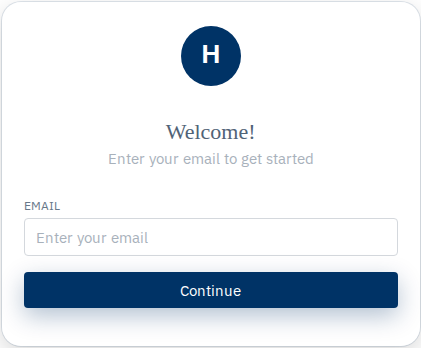
- Enter your password.
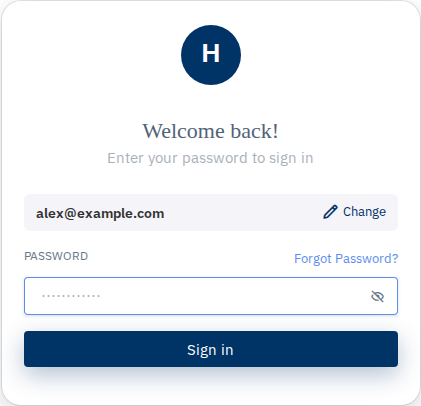
- Click Sign in.
You'll return to the home page when login succeeds.
If you registered by email but never set a password, open the setup link from your registration email first, or use Forgot your password.
Google or Apple sign-in
If you see Continue with Google or Sign in with Apple on the login page:
- Click the button.
- Complete the sign-in with Google or Apple.
- You're in — no password step.
The first time you use it, that creates your account. Link or unlink providers later under My Account → My Profile.
Forgot your password
- Go to Login.
- Enter your email and click Continue.
- On the password step, click Forgot Password?
- Enter your email again if asked.
- Click Send password reset link.
- Open the reset email and follow Reset your password.
Reset links expire after a short time. Request a new one if yours has expired.
Reset your password
- Open the reset link from your email.
- Enter your new password twice.
- Click Reset Password.
- On Login, enter your email, click Continue, enter the new password, and click Sign in.
Log out
- Open the account menu (your name or avatar).
- Click Logout.
Log out when you're on a shared or public computer.
If something goes wrong
"Invalid credentials" after entering my password.
Check caps lock. Use Forgot Password? to reset. If you only ever signed in with Google or Apple, use that button instead of a password.
Login succeeds but I go right back to the login page.
Clear cookies for this site or try another browser. If it keeps happening, contact support.
Continue button does nothing.
Make sure you entered a valid email. Turn off browser extensions that block scripts and try again.
See Buyer FAQ — Account & login for more.