
Group Portal
The Group Portal is for people who bought a group order — like a team manager who bought a block of tickets and needs to assign them to guests. This covers what the purchaser and guests do on the public site.
- Open the Group Portal
- Add guests
- Assign tickets to guests
- Send claim links to guests
- Claim tickets as a guest
- If something goes wrong
Open the Group Portal
- Log in with the account that bought the group order.
- Open the account menu (your name or avatar).
- Click Group Portal.
- On the list page, click Manage next to your group order.
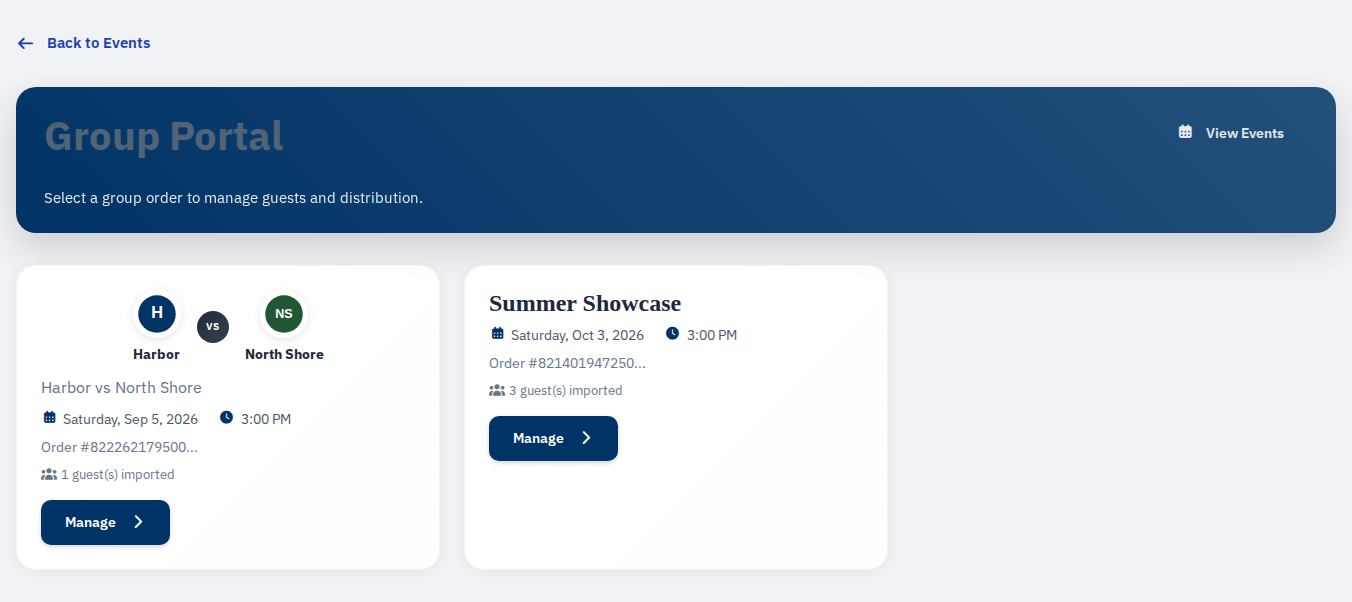
If Group Portal isn't there, your account may not be linked to a confirmed group order yet. Contact the organizer.
Add guests
From the group management page (Group Order Management):
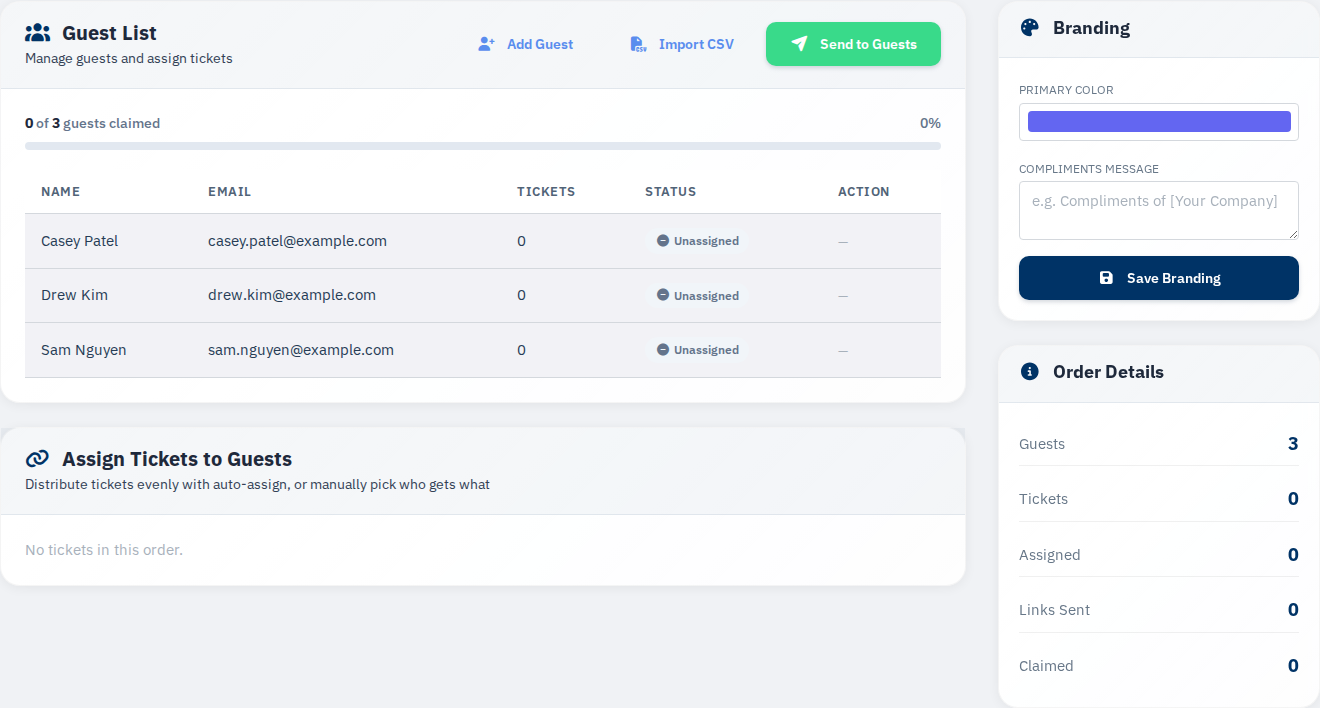
Add one guest manually
- In Manage guests and assign tickets, click Add Guest.
- Enter the guest's name and email.
- Save.
Import many guests
- Click Import CSV.
- Upload a CSV in the format shown on the import page.
- Review imported guests in the list.
The workflow steps track progress: Add Guests → assign tickets → Send to Guests.
Assign tickets to guests
After guests are added:
- Assign each ticket to a guest using the controls on the management page.
- For faster setup, click Auto-Assign Now when it's offered.
- Confirm each guest has the right number of tickets before sending links.
Guests can't claim tickets you haven't assigned to them.
Send claim links to guests
When assignments are ready:
- Click Send to Guests (from the workflow banner or guest section).
- Each guest gets an email with a personal claim link.
- You can Copy a guest's claim link from the dashboard to share by text or another channel.
Guests need their own link — it's tied to the tickets assigned to them.
Claim tickets as a guest
If you got a group claim email or link (/group-claim/{token}):
- Open the link on your phone or computer.
- Review Ticket Details — event, seats, expiry if shown.
- If you're not logged in:
- Enter your Email Address and click Continue.
- Log in or create an account when prompted.
- If you're logged in, review the ticket name (edit link to change the name on the pass if needed).
- Click Claim N Ticket(s).
- When it succeeds, click View My Tickets.
Claimed tickets show under My Tickets like any other purchase. Add them to Apple Wallet or Google Wallet from the order page.
If something goes wrong
Group Portal is missing from my menu.
Only the purchasing account on a confirmed group order sees Group Portal. Guests use claim links — they don't get this menu item.
Guest didn't receive the claim email.
Check the guest email on the management page. Copy the link to send another way, or click Send to Guests again if the portal allows it.
Guest can't claim — link expired or already used.
The purchaser needs to confirm assignments and send a fresh link. Expired links can't be fixed from the guest side.
Guest wants tickets in their wallet but I added them to mine.
Tickets have to be claimed into the guest's account via their claim link. You can't add group-assigned tickets to a guest's wallet from your account.
See also Accepting a Transfer for person-to-person transfers (different from group claims) and Managing Your Tickets.