Buying Tickets
How to buy tickets from the Tickets link in the navigation. You can browse events and pick tickets without an account — login is required at checkout when you pay.
- Find an event
- Pick your tickets
- Promo code (if you have one)
- Checkout and pay
- Finish an unpaid order
- After purchase
- If something goes wrong
Find an event
- Click Tickets in the main navigation.
- Browse upcoming events.
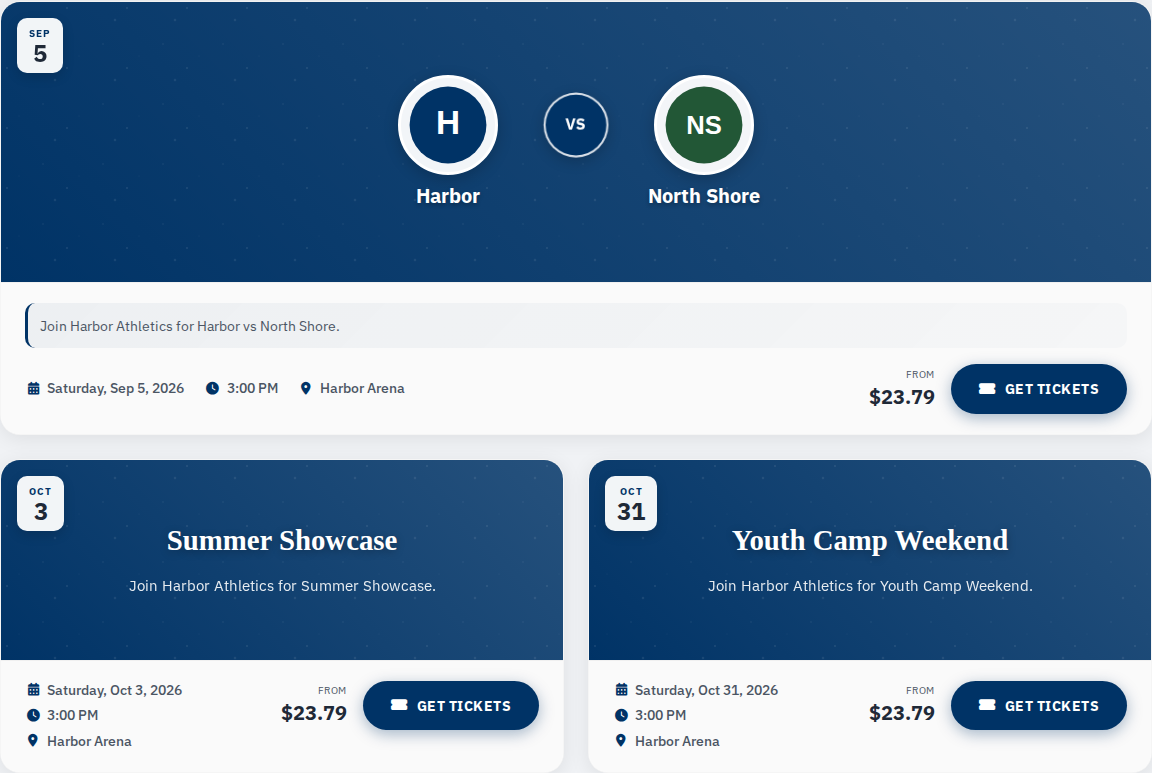
- Click an event card or Buy Now to open it.
Pick your tickets
General admission
- On the event page, find the ticket types (Adult, Child, VIP, etc.).
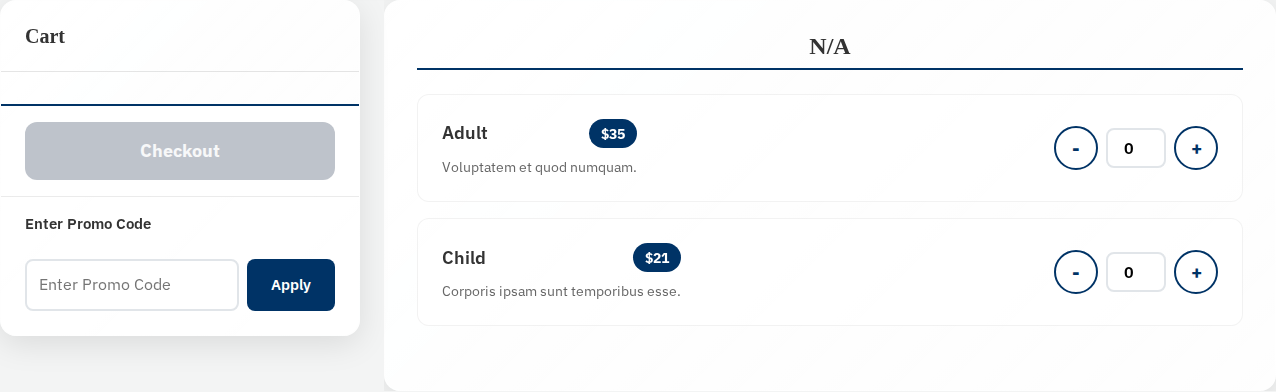
- Use − and + to set how many you want.
- Check the cart summary, then click Checkout.
Assigned seating
If the event shows a seat map:
- Click an available seat (highlighted seats are selectable), or click Best available if that button appears to auto-pick seats for you.
- If you used Best available, confirm the seat picks and ticket types in the dialog.
- Selected seats show in your cart summary.
- Pick more seats if you need them.
- When you're done, click Checkout.
Promo code (if you have one)
If the event page shows Enter Promo Code:
- Type your code and click Apply.
- Confirm the discount appears in the cart summary.
- Click Clear to remove it and try a different code.
Promo codes only work on the event page, before Checkout — not on the payment page.
Checkout and pay
- Click Checkout on the event page.
- Review the summary — event, ticket types, seats, fees, total.
- If you're not logged in, you'll be asked to Login or Register first.
- Enter your card on the payment page and submit.
- After payment succeeds, you'll go straight to your order confirmation page — not a processing or error screen. Your tickets are on that page and under My Tickets.
Finish an unpaid order
If payment got interrupted:
- Log in and open My Tickets.
- Find the unpaid order and click Complete Payment.
Or click the notification bell and choose Complete Payment on the alert.
Pay before any hold on your tickets expires.
After purchase
- You'll see your order confirmation right after payment (with your tickets on the page).
- Check your email for the confirmation message.
- Open My Tickets anytime to view the order again.
- Add tickets to Apple Wallet or Google Wallet.
- Update holder names or transfer tickets if you need to.
If something goes wrong
Checkout button disabled on a seat map event.
Finish selecting all the seats you need. Fix any validation message on the map.
Promo applied but discount missing at payment.
Go back to the event page, click Clear, re-enter the code, click Apply, then Checkout again.
Payment declined.
Try another card or call your bank. The order may sit as unpaid under My Tickets — use Complete Payment to retry.
Charged but no tickets in my account.
Refresh My Tickets, log out and back in, and check your confirmation email. Contact the organizer with your order confirmation if tickets still don't show.
Other purchase types
If your site sells these, see the matching guide: